Cyberbot
Findthe weaknessKeepthe evidence

Test authorized websites and APIs, follow the tools and review every finding.
Loading Cyberbot workspace…
From a target to a verified finding
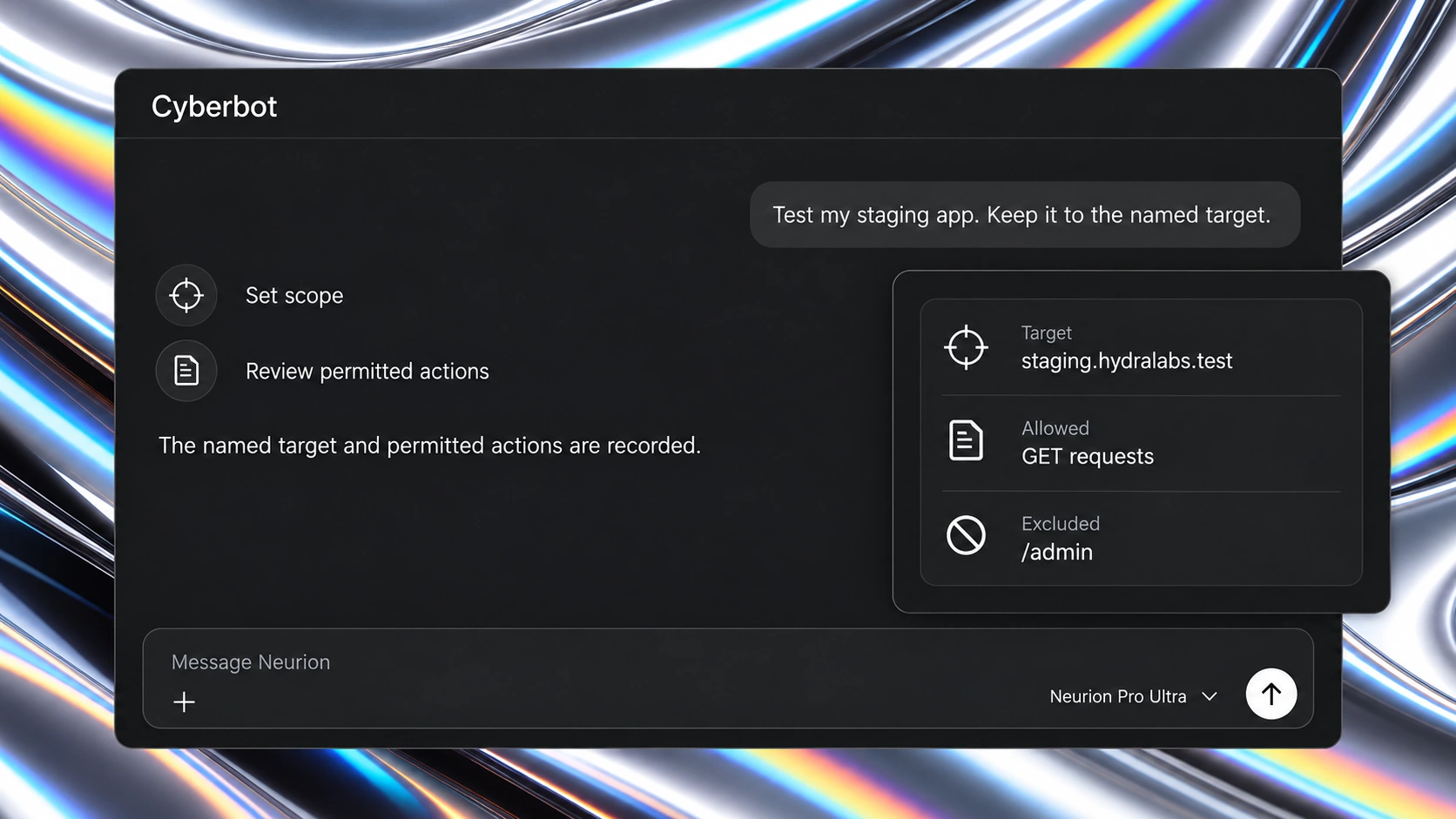
Define the target
Name the website or API, the permitted actions and the boundaries of the task.

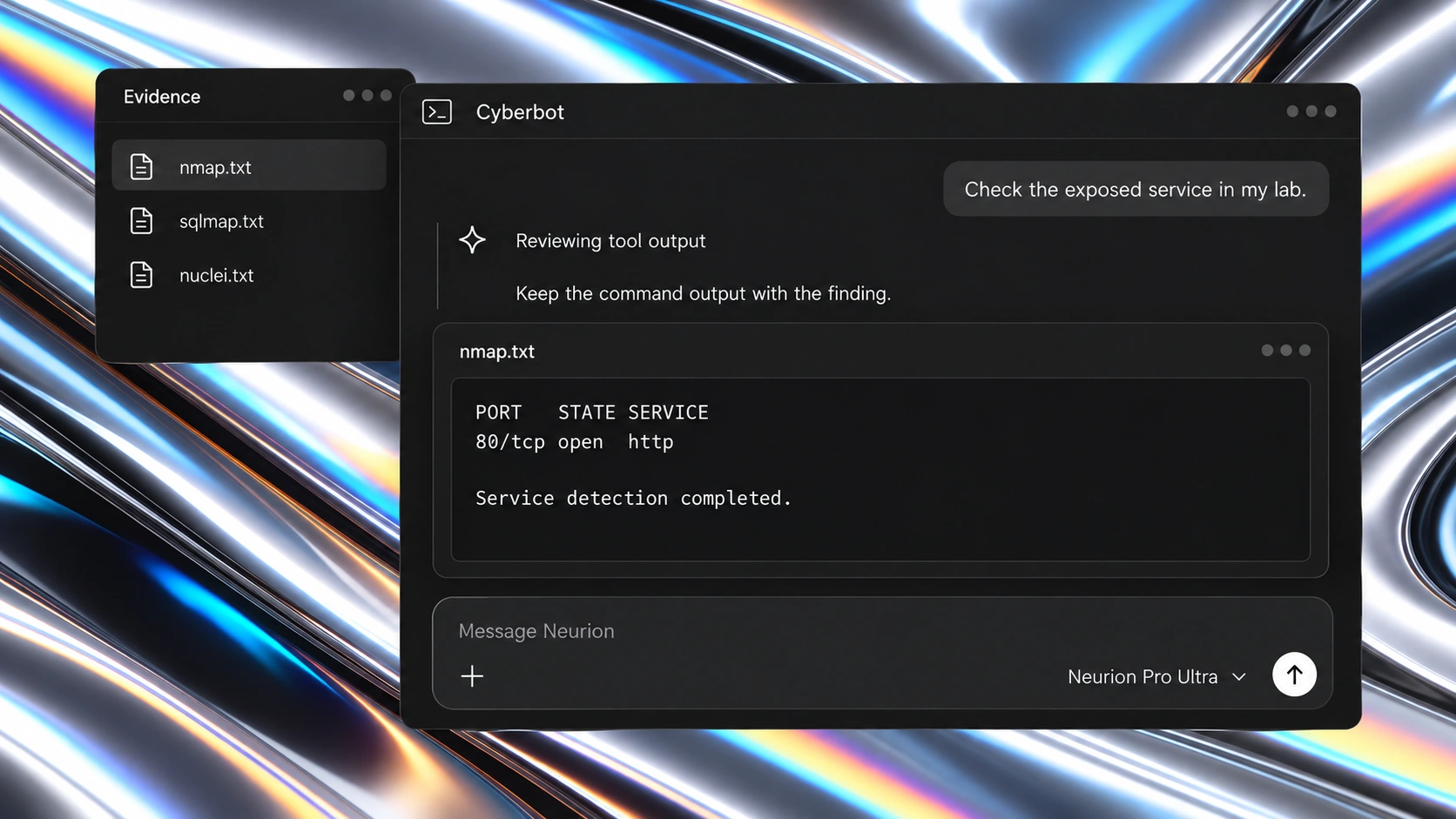
Follow the tools
Inspect the commands and output behind the investigation, with the evidence kept in view.

Verify the finding
Connect each finding to the affected endpoint, supporting evidence and a recommended fix.

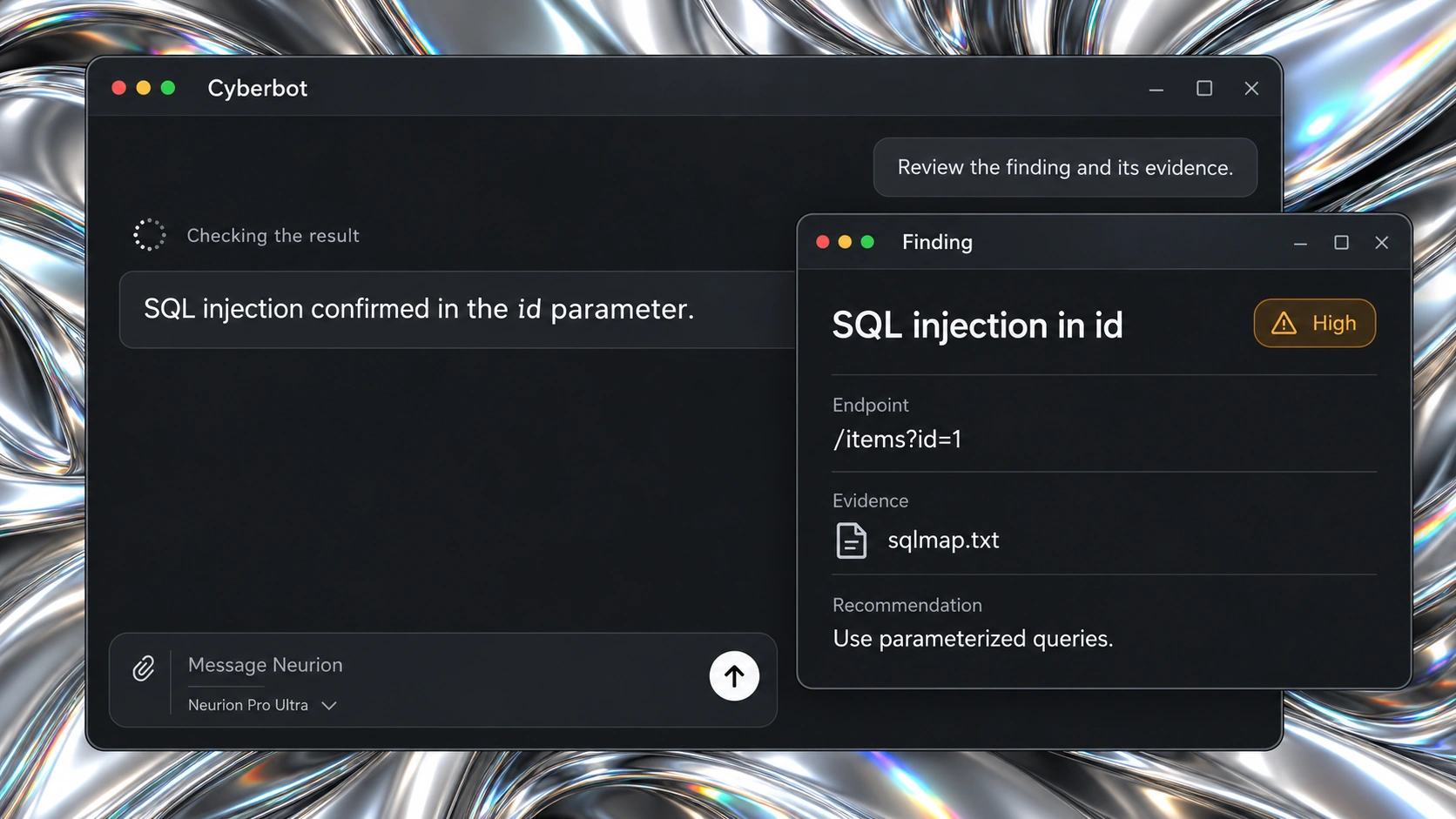
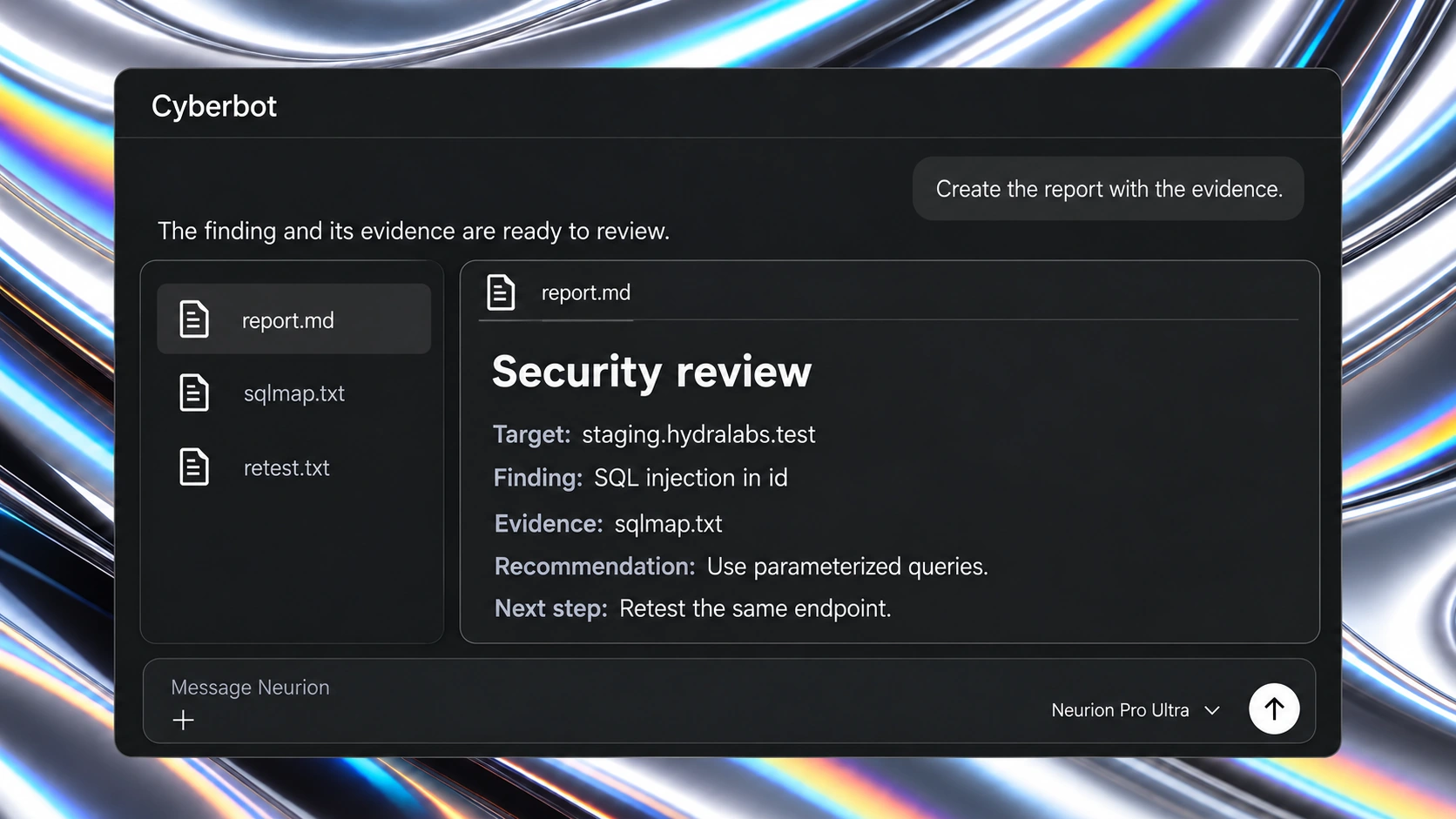
Keep the report
Bring the scope, findings and evidence together for review and follow-up.

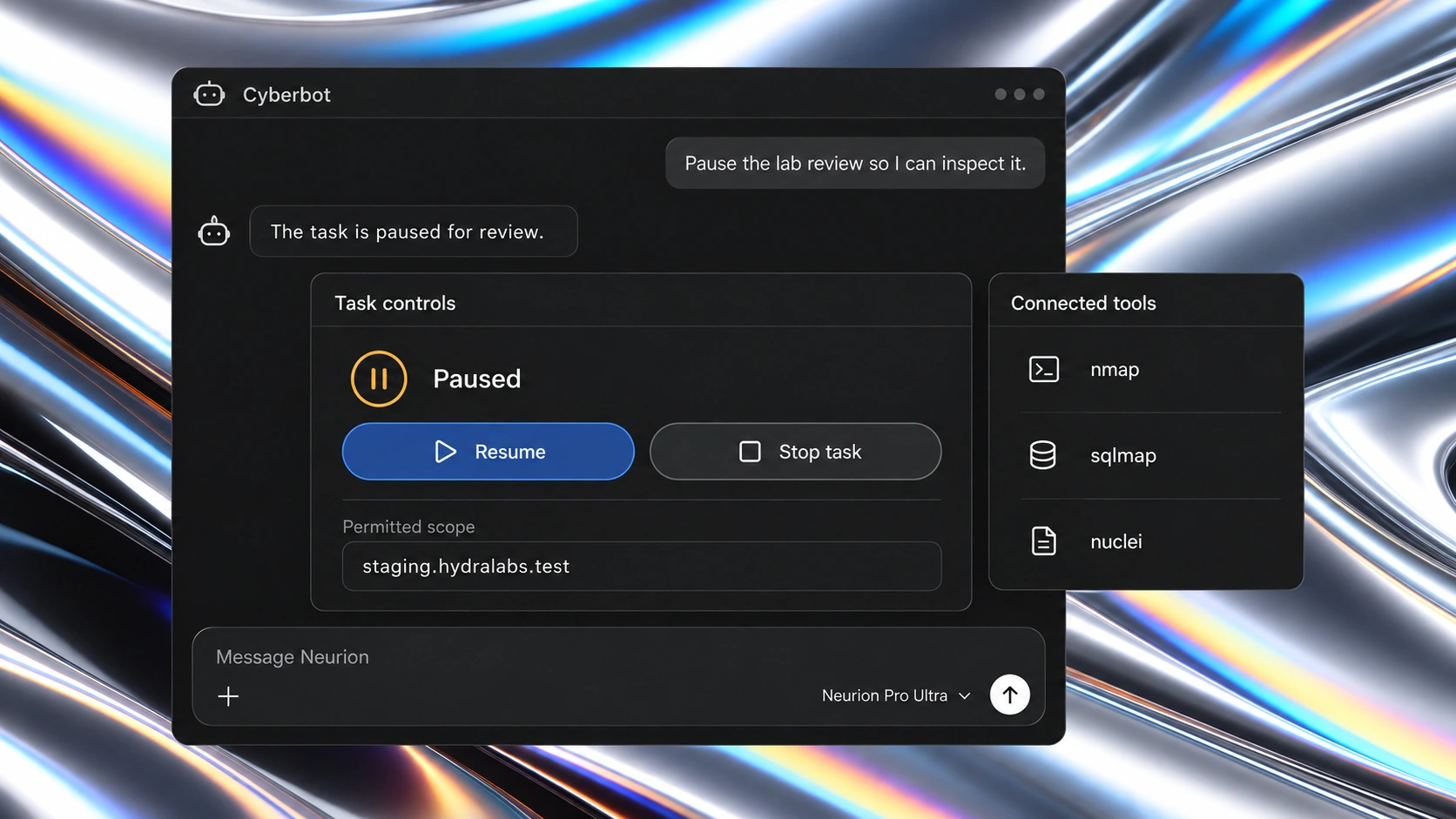
Stay in control
Use systems you own or are authorized to test. Review permissions, monitor the activity and pause to inspect the task.
Risk and supervision
Neurion, on your desktop
Your code, conversations, and tools. Together on your desktop.
Explore downloads
Neurion macOS
Coming soon
Neurion Windows
Checking Windows download…
Neurion Linux
Coming soon
A few things
you might be wondering.
What is Neurion?
Neurion is the HydraLabs desktop workspace for conversations, coding, code review and authorized security work. Chat, Code, BugBot and CyberBot share one application, with tools and permissions selected for the task.
Is Ultra a separate model?
No. Ultra organizes complex work into planning, focused assignments and verification. It uses the model selected for the task. Model choice, effort, tool permissions and the task's usage limits still apply.
How are BugBot and CyberBot different?
BugBot reviews project code and changes, explains findings and supports an explicitly requested repair workflow. CyberBot investigates security issues in authorized websites, APIs and codebases. Define the scope before starting and review the evidence and verification results before applying changes.
How do browser and computer tools work?
Enable Browser Use from Plugins when a task needs to interact with a website. Its actions remain subject to the task's permissions and the browser session available to it. Computer Use is not exposed in the current desktop interface. A connected MCP server has its own tools and setup; installing a server does not automatically install a skill.
Does everything run offline?
No. Desktop conversation history and project files are stored on your device. Model requests send the context needed for the task to online services, and connected tools require their own network access. Signing in on another computer does not transfer your local conversations.
Where can I get the Windows app?
Open Download on this website and select the available Windows release. The page provides the installer and release information. Use that page for platform availability; a demonstration on a model page is not an installer.